 Rasel Mail
Walkthrough: set up your company email
From the owner account to a receiving/reply test, with checks at each stage.
Editorial update: October 30, 2026In this guide
What you will have
We use the reserved example.com domain and hello@example.com address. The goal is an independent mailbox on your domain with verified receiving and ready sending. Domain registration is purchased separately from a registrar; a Rasel Mail subscription does not register it.
- A verified owner account with an accessible recovery email.
- A subscription with domain, mailbox and storage capacity.
- Access to the active DNS panel; preserve existing records before changing mail routing.
1. Prepare the owner account and resources
- Verify the account email and open Control Panel → Subscription.
- Choose capacity for your mailboxes and at least one custom domain. Review the monthly total and submit a request.
- Wait for payment confirmation and activation. A pending request is not an active subscription.
2. Connect the domain in three stages
- Open Domains and add only the domain name, without https.
- Add your ownership TXT to DNS and verify it. Check the final name to avoid repeating the domain.
- Complete receiving records: type, name, value and separate MX priority.
- Complete the displayed sending records after receiving setup. Do not add a second SPF at the same name.
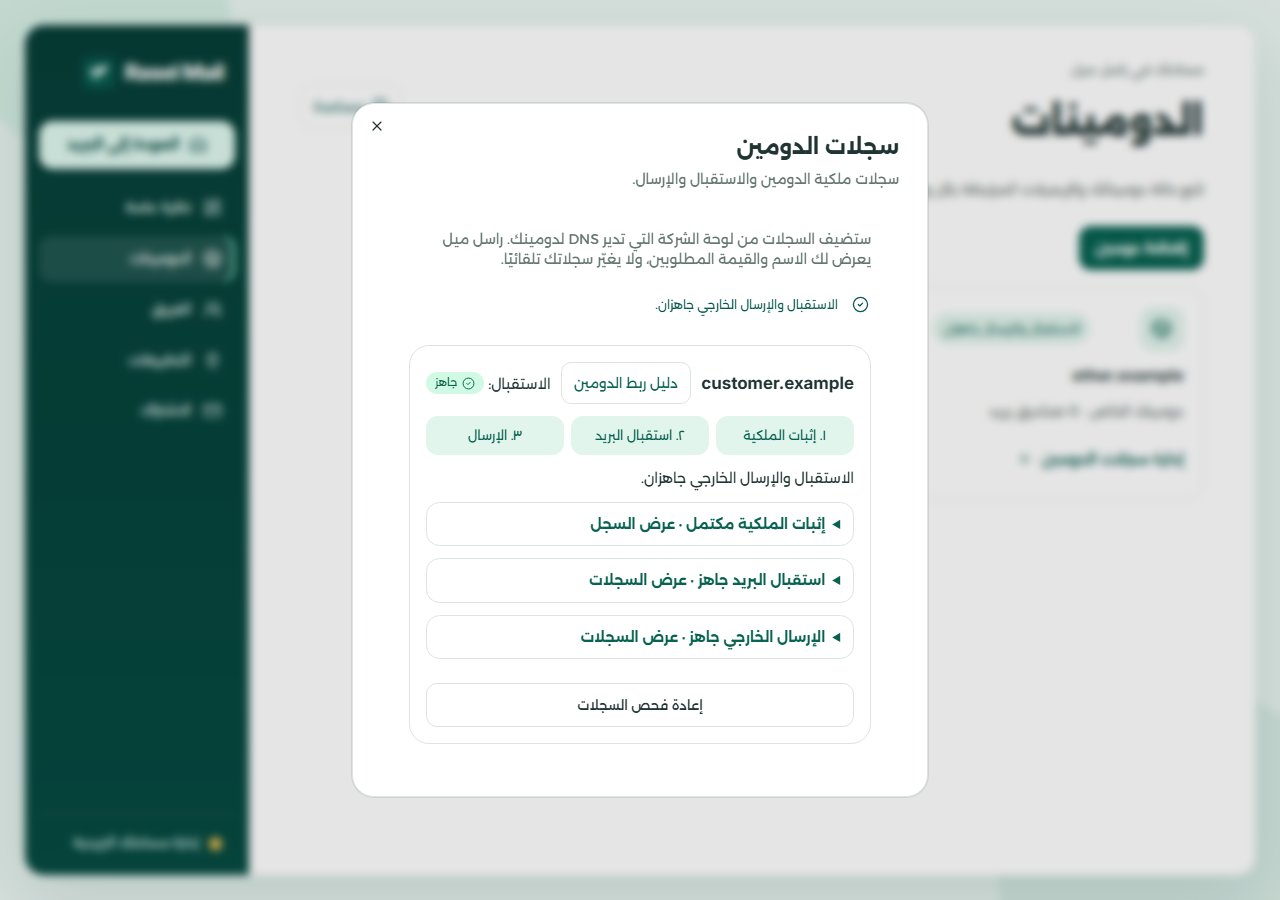
- Each stage has its own verification.
- Expand a completed stage to view records.
- Verify after saving and allowing DNS caches to update.
3. Create the mailbox and test both directions
- From Overview, open mailbox management and create hello on the ready domain.
- Use a unique password and wait for provisioning.
- Send a non-sensitive message from an external address to the full mailbox address.
- Open it in Rasel Mail and reply, then check the other mailbox.